


Key Takeaways

- Identify Key Performance Factors: Understand the importance of hardware specifications, software issues, malware, and background processes in affecting your computer’s speed.
- Regular Maintenance is Crucial: Routinely clear temporary files, keep your software updated, and perform disk defragmentation for better efficiency.
- Optimize Startup Programs: Disabling unnecessary startup programs can significantly improve boot time and overall system performance.
- Utilize Disk Cleanup Tools: Use built-in and third-party disk cleanup tools to remove unneeded files, enhancing both speed and longevity of your computer.
- Consider Hardware Upgrades: Increasing RAM and switching to an SSD can substantially boost your computer’s performance, especially for multitasking and demanding applications.
- Optimize Your Operating System: Adjusting visual effects and keeping your software updated are key strategies to enhance system responsiveness and ensure smooth operation.
Is your computer running slower than molasses? You’re not alone. Many people face sluggish performance that can turn even simple tasks into frustrating challenges. Fortunately, there are effective ways to breathe new life into your machine and boost its speed.
In this article, you’ll discover practical tips and tricks to optimize your computer’s performance. From managing startup programs to upgrading hardware, you’ll learn how to tackle the common culprits behind a slow system. Get ready to reclaim your productivity and enjoy a faster, more responsive computer experience.
Understanding Computer Performance

Understanding your computer’s performance is essential, especially for small business operations. Several factors contribute to how fast or slow your computer runs. Identifying these elements helps you optimize and enhance efficiency.
Factors Affecting Speed
- Hardware Specifications: A computer’s hardware, including the processor, RAM, and storage type, directly impacts speed. Upgrade your RAM or switch to an SSD for noticeable improvements.
- Software Issues: Running outdated or resource-heavy software can slow down your system. Keep applications updated and remove any unnecessary programs to free up resources.
- Malware and Viruses: Malware can significantly degrade performance. Regularly scan your computer with reliable security software to detect and remove threats.
- Background Processes: Applications running in the background consume resources. Check your task manager and disable unneeded startup programs to streamline operations.
Importance of Regular Maintenance
Regular maintenance is vital for maintaining computer speed and efficiency.
- Routine Cleaning: Clear temporary files and browser caches. This can free up space and help your system run smoother.
- System Updates: Keep your operating system and software updated. Updates often include optimizations that enhance speed and security.
- Disk Defragmentation: For traditional HDDs, defragmenting the disk can improve access times. Schedule regular defragmentation to maintain performance.
- Regular Backups: Implement a backup strategy. This protects your data and ensures you can recover quickly in case of a system failure, reducing downtime.
Maintaining your computer’s performance through regular attention ensures your small business operates efficiently and effectively in a fast-paced tech environment.
Simple Tips for Speeding Up Your Computer

Enhancing your computer’s speed significantly boosts productivity, especially for small businesses. Implementing a few straightforward strategies can help optimize performance for your daily tech needs.
Uninstall Unnecessary Programs
Uninstalling infrequently used programs helps improve your computer’s performance. It frees up valuable disk space and reduces system load.
Steps to Uninstall Programs:
-
Windows:
- Open the Control Panel or Settings.
- Navigate to the “Programs” section and select “Uninstall a program”.
- In Windows 10, go to the Settings menu, click on “Apps,” and scroll through installed programs. Click on the program you wish to uninstall, then select “Uninstall” or “Remove”.
- Follow the prompts to complete the uninstallation.
-
Mac:
- Access the “About This Mac” dialog box to manage and uninstall applications, though steps may vary slightly based on your macOS version.
Remove programs that you and your team rarely use to streamline operations and maintain a smoothly running system.
Disable Startup Programs
Disabling unnecessary startup programs speeds up your computer’s boot time and enhances overall performance. Fewer programs running in the background can lead to faster response times.
Steps to Disable Startup Programs:
-
Windows:
- Right-click the taskbar and choose “Task Manager”.
- Navigate to the “Startup” tab. Here, you’ll find a list of programs that run at startup.
- Right-click on any program you don’t need at startup and select “Disable”.
- Go to “System Preferences” and select “Users & Groups”.
- Click on your account name, then “Login Items”.
- Select items you don’t need at startup and click the minus (-) button to remove them.
Eliminating unnecessary startup items allows your computer to boot faster, reducing downtime and improving your small business’s efficiency.
Cleaning Up Your System

Cleaning up your system plays a crucial role in boosting your computer’s performance, especially for small businesses managing multiple tasks. You can enhance your tech efficiency by implementing these strategies.
Remove Temporary Files
Removing temporary files helps free up disk space and improve system performance. On Windows, navigate to the C:UsersAppDataLocalTemp folder. You can manually delete these files, being cautious not to remove files currently in use by applications. Alternatively, access temporary files quickly by pressing Windows + R, typing %temp%, and pressing OK. Select all files displayed and delete them. For a more automated solution, enable Storage Sense by going to Settings > System > Storage, toggling it on, and configuring it to clean up temporary files automatically or manually.
On Mac, clearing its cache improves performance as well. Open Finder, click on Go, then select Go to Folder. Type ~/Library/Caches/ and delete cache files from each folder. Always back up your system before making such changes.
Use Disk Cleanup Tools
Using disk cleanup tools simplifies the process of optimizing your computer. For Windows users, the built-in Disk Cleanup tool identifies unnecessary files to delete, such as system cache and old installation files. To access this tool, type “Disk Cleanup” in the search bar, select the drive you want to clean, and allow it to calculate how much space you can free. Follow the prompts to remove unnecessary files.For Mac users, consider using third-party applications like CleanMyMac, which effectively identifies and deletes junk files without affecting system performance. Regular use of disk cleanup tools not only enhances your computer’s speed but also prolongs its lifespan, ensuring a smooth tech experience for your small business operations.
Upgrading Your Hardware
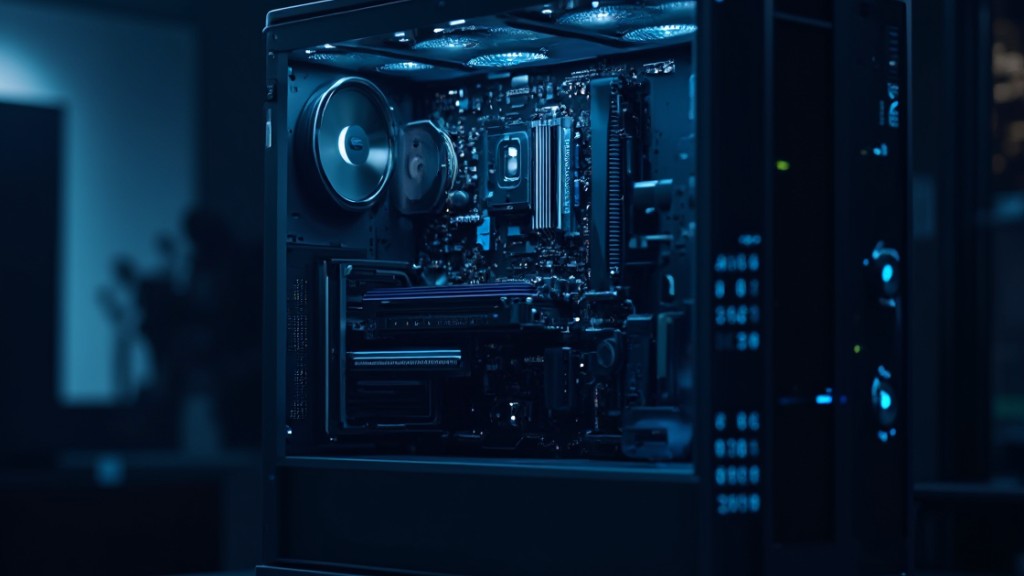
Upgrading your hardware can significantly enhance your computer’s speed and efficiency, critical for small business operations. Focus on increasing RAM and switching to a Solid-State Drive (SSD) for optimum performance.
Increasing RAM
- Adding more RAM boosts performance by allowing your system to handle multiple applications at once without lag. This upgrade is essential for multitasking, especially when running resource-intensive software like video editing tools or business applications.
- Investing in additional RAM reduces reliance on slower virtual memory, leading to smoother operation and faster response times. For example, a system with 8GB of RAM might struggle under heavy workload, while upgrading to 16GB ensures more seamless task management.
- Check your computer for available RAM slots. Many desktops and laptops allow extra RAM modules to be added. Ensure the new RAM matches the existing specifications for compatibility.
Switching to SSD
- Transitioning to an SSD dramatically improves boot time and application launch speed. Unlike traditional hard drives, SSDs use flash memory, resulting in faster data access and retrieval.
- Businesses can see substantial time savings with SSD installations. A computer that boots in 60 seconds with a hard drive may boot in 15 seconds with an SSD, allowing you to get to work quicker. When upgrading, consider the storage capacity you need. SSDs come in various sizes, so choose one that accommodates your data while delivering optimal speed.
Upgrading RAM and switching to an SSD can transform your computer’s performance, resulting in a more efficient tech environment for your small business.
Optimizing Your Operating System
Optimizing your operating system improves your computer’s overall performance, crucial for maintaining efficiency in a small business environment.
Adjusting Visual Effects
Adjusting visual effects on your computer can enhance its speed. Access the System Properties by right-clicking on “This PC” or “My Computer,” then selecting “Properties.” Click on “Advanced system settings,” and under the “Performance” section, select “Settings.” You can choose “Adjust for best performance” to disable all visual effects or customize it by unchecking specific options. Reducing animations and effects conserves system resources, improving responsiveness, especially when running tech applications essential for your business.
Keeping Software Updated
Keeping software updated is vital for optimal performance and security. Regularly check for updates for your operating system and applications, as these updates often contain performance enhancements and security patches. For Windows, navigate to “Settings,” then “Update & Security,” and select “Check for updates.” For macOS, click on the Apple menu, select “System Preferences,” then “Software Update.” Staying on top of updates minimizes bugs and enhances system performance, ensuring that your small business runs smoothly and securely in a fast-paced tech landscape.Conclusion

Improving your computer’s speed is essential for a seamless user experience and efficient productivity. By implementing the strategies discussed you can effectively tackle slow performance issues. Regular maintenance and upgrades play a crucial role in keeping your system running smoothly.
Don’t underestimate the impact of cleaning up your files and managing startup programs. Investing in hardware upgrades like Crucial and Samsung SSDs can lead to significant performance boosts.By staying proactive and following these tips you’ll not only enhance your computer’s speed but also extend its lifespan. A well-maintained computer ensures your small business operates efficiently in today’s fast-paced tech environment.
Frequently Asked Questions

What causes slow computer performance?
Slow computer performance can be attributed to various factors, including outdated hardware, too many startup programs, insufficient RAM, malware, and fragmented hard drives. Background processes consuming system resources also contribute to lag and reduced efficiency.
How can I improve my computer’s speed?
To improve speed, manage startup programs, uninstall unnecessary applications, upgrade hardware (like RAM or an SSD), and keep software updated. Regular maintenance, including disk cleanup and system updates, also plays a vital role in enhancing performance.
Is upgrading RAM worth it?
Yes, upgrading RAM is often worth it, especially for multitasking or using resource-intensive applications. More RAM allows your computer to handle multiple tasks smoothly, reducing lag and increasing productivity.
What is the benefit of switching to an SSD?
Switching to a Samsung Solid-State Drive (SSD) significantly improves boot times and application launch speeds. SSDs offer faster data access, which directly enhances overall computer performance and provides a smoother user experience.How do I clean up my computer effectively?
You can clean up your computer by removing temporary files, uninstalling unused programs, and using built-in tools like Disk Cleanup on Windows or Cleanup on Mac. Third-party applications can also help identify and delete unnecessary files.Why is regular system maintenance important?
Regular system maintenance is crucial for maintaining optimal performance. It helps prevent slowdowns caused by malware, outdated software, and disk fragmentation. Routine checks keep your computer running efficiently, extending its lifespan.
How do I adjust visual effects to improve performance?
To adjust visual effects, access System Properties on your computer, navigate to Performance Settings, and choose options that reduce visual effects. This conserves system resources and can lead to a noticeable performance improvement.
How can I prevent malware from slowing down my computer?
Regularly scanning your computer with trusted antivirus software helps detect and remove malware. Keeping your software updated and being cautious when downloading programs or opening emails also reduces the risk of infections.
Image via Google Gemini