


Key Takeaways

- User-Friendly Creation: Facebook slideshows are easy to create, allowing you to showcase photos and videos seamlessly, making them perfect for storytelling and marketing.
- Engaging Visuals: Select 3 to 10 high-quality images or videos that reflect your brand story, product highlights, or customer experiences to captivate your audience.
- Consistent Editing: Maintain a professional look by choosing the appropriate aspect ratio (square, rectangle, or vertical) and keeping each image displayed for 3 to 5 seconds.
- Effective Sharing: Adjust privacy settings to determine your audience reach; consider “Public” for broader visibility or “Friends” for targeted sharing.
- Audience Engagement: Use captivating themes, hashtags, and encourage comments to foster interaction, increasing the potential for shares and engagement across social media platforms.
Creating a Facebook slideshow is a fantastic way to showcase your memories, promote your business, or share special moments with friends and family. With its user-friendly interface, Facebook makes it easy for anyone to compile photos and videos into a captivating slideshow that grabs attention. Whether you’re celebrating a birthday, highlighting a recent trip, or simply sharing your favorite snapshots, a well-crafted slideshow can elevate your storytelling.
Understanding Facebook Slideshows
Facebook slideshows offer a dynamic way for small businesses to engage audiences through visual storytelling. By combining images and videos, you can showcase products, services, or brand narratives effectively. The platform’s intuitive design simplifies the creation process, allowing you to compile media seamlessly.
You can use slideshows to highlight promotions or events, making it easier for potential customers to digest information quickly. With social media being essential for brand visibility, incorporating Facebook slideshows into your marketing strategies enhances your outreach. Slideshows also allow for creative expression, making your content stand out against competitors on platforms like TikTok and Pinterest.
Utilizing Facebook slideshows helps capture attention effortlessly. Engaging visuals can increase shares and interactions, reaching a wider audience. Capitalizing on Facebook’s robust user base creates opportunities for your small business to gain recognition and foster connections with customers.
Preparing Your Media
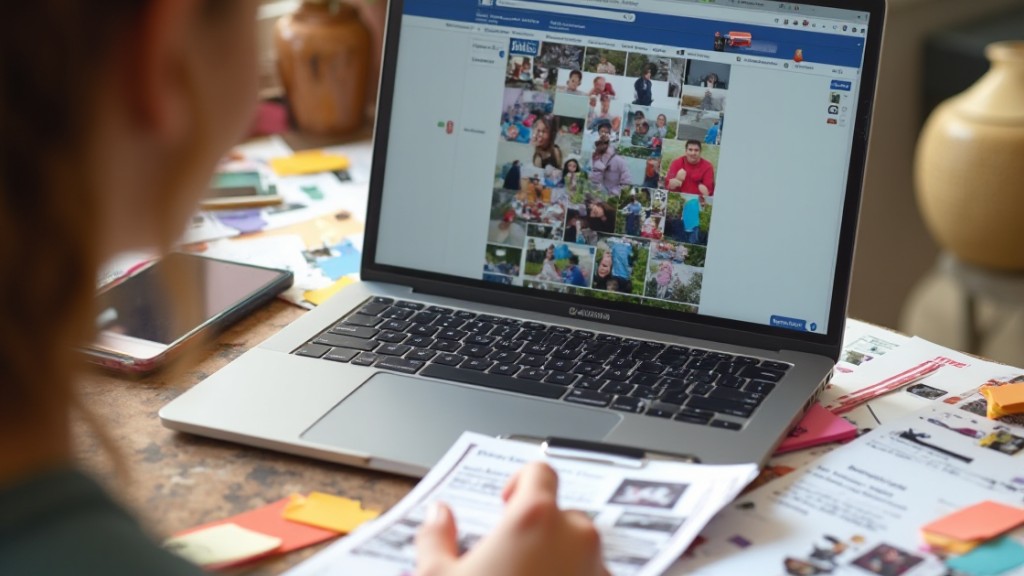
Preparing your media is a crucial step in creating an engaging Facebook slideshow. Focus on selecting the right visuals and ensuring effective editing to capture your audience’s attention.
Selecting Images and Videos
- Select between 3 to 10 high-quality images or videos for your slideshow. Choose visuals that clearly depict your small business’s offerings or brand story.
- Use either photos from your device’s gallery or upload them directly to Facebook. Consider showcasing product highlights or customer experiences to connect with your audience.
- Ensure the images are relevant to your slideshow’s theme. Engaging visuals can enhance your social media presence and promote your brand effectively.
Editing Your Media
- Choose the appropriate aspect ratio for your slideshow: square (1:1), rectangle (16:9), or vertical (2:3). Maintain consistency to create a professional look that aligns with your brand identity.
- Set the duration for each image in the slideshow, ranging from 0.5 to 5 seconds. Remember, the total slideshow cannot exceed 15 seconds using Facebook’s default feature. This short duration encourages viewer retention and enhances the overall impact, making your small business stand out on social media.
Creating a Facebook Slideshow
Creating a Facebook slideshow enhances your small business’s marketing efforts by effectively showcasing your products or services to your audience. Follow these steps to create a captivating slideshow.
Accessing the Slideshow Feature
- Log in to your Facebook account and navigate to your business page.
- Click on the “Photo/Video” option when crafting a post.
- Choose “Create Slideshow” from the available post options.
Adding Media to Your Slideshow
- Upload between 3 to 10 high-quality photos or videos that represent your business.
- Upload in the desired order, as Facebook does not allow rearranging after upload. Consider using third-party tools, like SmartSHOW 3D or Smilebox Slideshow Maker, for additional features and customizations.
Customizing Your Slideshow
- Adjust the aspect ratio based on the platform’s requirements: square, rectangle, or vertical.
- Set the duration for each image—typically, 3 to 5 seconds keeps viewers engaged without losing interest.
- Utilize text overlays or capture moments that convey your brand’s story, enhancing your social media presence and driving engagement.
By following these steps, you’re on your way to creating a compelling Facebook slideshow that can elevate your small business’s visibility and connect with your audience more effectively.
Sharing Your Slideshow

Sharing your Facebook slideshow effectively enhances visibility for your small business. After creating it, follow the steps below to ensure maximum reach.
Privacy Settings
Adjust your privacy settings to control who views your slideshow. You can choose between options like “Public,” “Friends,” or “Only Me.” Selecting “Public” allows anyone on Facebook to view your slideshow, which is beneficial for promoting your business. If you’re targeting specific customers, consider the “Friends” option. To modify these settings, click the audience selector right before publishing your slideshow, ensuring it reaches the right audience.
Engaging Your Audience
Engaging your audience makes a significant difference in the effectiveness of your slideshow. Use eye-catching themes and captivating transitions to attract attention. Incorporating relevant hashtags can also expand your reach, making your slideshow easily discoverable on social media platforms like Facebook, TikTok, or LinkedIn. Invite viewers to share their experiences in the comments to foster interaction. Additionally, consider cross-promoting your slideshow on platforms like Pinterest to connect with a broader audience. Engaging visuals and strategic sharing increase the chances of your slideshow maximizing viewer interactions and brand awareness.Conclusion
Creating a Facebook slideshow is a powerful way to connect with your audience and showcase your brand. By following the steps outlined in this guide you can easily craft engaging visuals that highlight your offerings and tell your story.
Remember to choose high-quality images or videos that resonate with your theme and keep your slideshow concise for maximum impact. With the right customization and sharing strategies you’ll not only increase visibility but also foster deeper connections with your audience.
So go ahead and start creating your slideshow today to elevate your social media presence and engage your followers like never before.
Frequently Asked Questions

What are the benefits of creating a Facebook slideshow?
Creating a Facebook slideshow allows you to showcase memories, promote businesses, and share special moments easily. It enhances storytelling by combining images and videos, making your content more engaging for various occasions like birthdays or business promotions.
How do I prepare media for a Facebook slideshow?
Select 3 to 10 high-quality images or videos that reflect your theme and brand story. Ensure they are relevant to keep viewers engaged. The editing process includes adjusting the aspect ratio and setting appropriate image durations to maintain viewer interest.
How long should a Facebook slideshow be?
A Facebook slideshow should not exceed 15 seconds for maximum impact. This short duration keeps the audience’s attention and effectively conveys your message without overwhelming them.
How can I create a Facebook slideshow?
To create a slideshow, log in to your Facebook account, go to your business page, and select “Create Slideshow” under “Photo/Video.” Upload your media in the order you want, as rearranging them later is not possible.
What customization options are available for Facebook slideshows?
You can customize your slideshow by adjusting the aspect ratio, setting image durations between 3 to 5 seconds, and adding text overlays. These features help tailor your slideshow to effectively convey your brand’s story and enhance viewer engagement.
How can I maximize the visibility of my Facebook slideshow?
Adjust your slideshow’s privacy settings, use eye-catching themes and transitions, and include relevant hashtags. Engaging your audience through comments and cross-promoting on other platforms also boosts visibility and brand awareness.
Image via Google Gemini